Installation under iPhone
Installing Google Authenticator on iPhone/iPad/iPod Touch
To install Google Authenticator on your iPhone / iPad / iPod Touch device, it must have iOS 5.0 or newer. If you want to use QR codes on iPhone, it must be a 3G+ model.
1. Visit App Store.
2. Search for Google Authenticator.
3. Download and install the app.
Configuring Google Authenticator
To enable two-factor authentication (2FA) for your hosting Control Panel using Google Authenticator on your iPhone / iPad / iPod Touch device, please follow these instructions:
1. Log in to your hosting Control Panel, and go to the Account Profile section. Under Two-Factor Authentication, click the Enable button. You will see a similar to the following screen: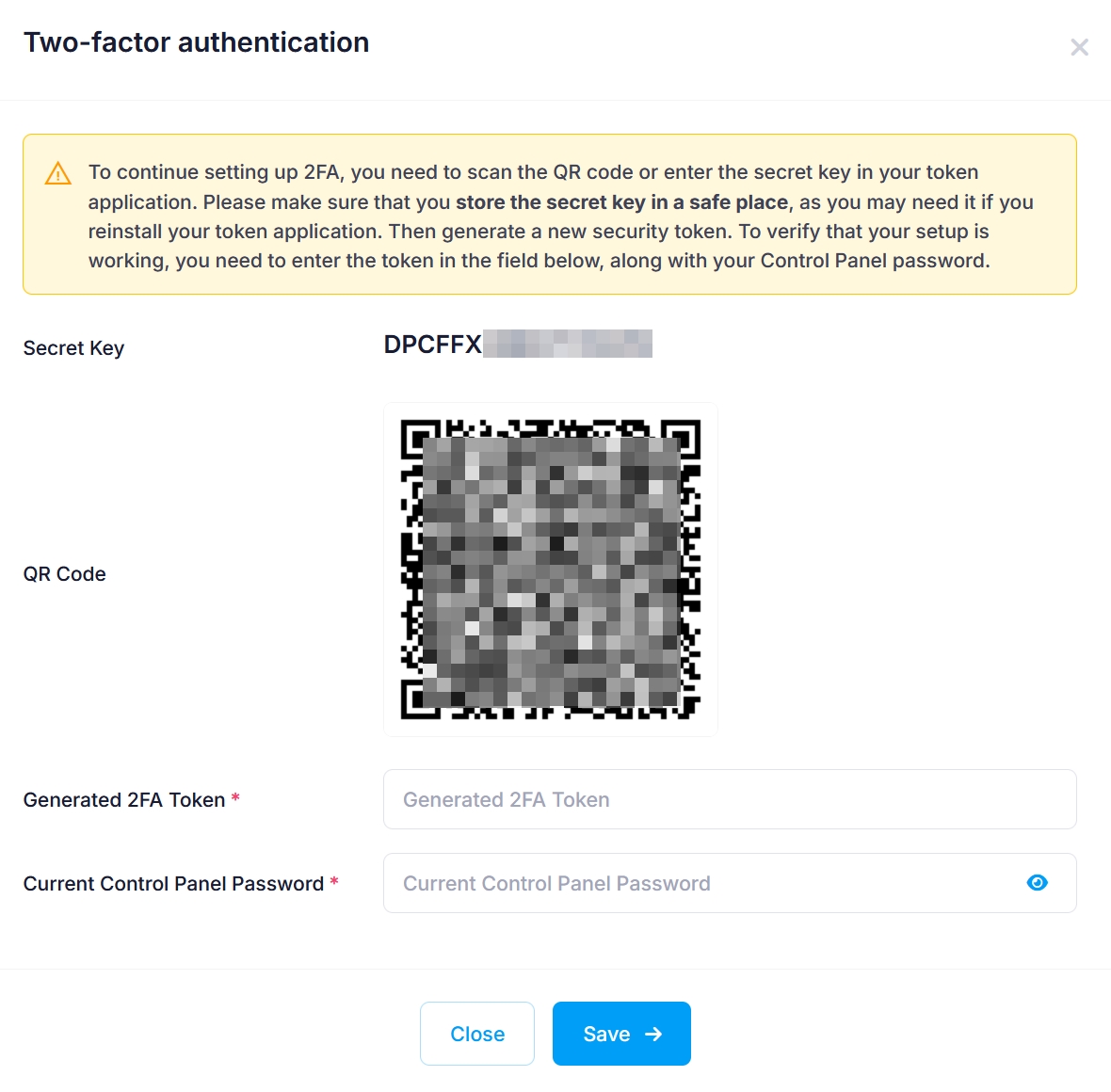 2. Start Google Authenticator on your iPhone / iPad / iPod Touch device. If you use Google Authenticator for the first time, click on the Begin setup button. Otherwise, and click on the icon with the Plus sign.
3. There are two ways to set up Google Authenticator:
- Scanning the displayed QR code: Select Scan barcode. Point the device camera to the QR code on the screen. Google Authenticator will create a new account ControlPanel:user, where user is your username for the hosting Control Panel.
- Entering the secret key manually: Select Manual entry. In the field Account, enter a name for your account. For example, this could be the username, the server, and/or the domain of your hosting account. In the field Key, enter the 16-digit secret key which is displayed on your computer screen. Leave the selected Time based option, and confirm.
4. Keep the secret key in a safe place. It will be needed in case you reinstall Google Authenticator, or if you lose your mobile device.
5. Enter the security token generated by Google Authenticator in the Generated Token field and your current Control Panel password. After that, click the Check the token and enable 2FA button.
6. 2FA is now set up - you can log in to your hosting Control Panel only with a security token generated by your Google Authenticator.